More Related Content

PPTX
Week 08 - Using Notifications in Android.pptx 
PDF
597724227-mad-unit2.pdf-Mobile Application Development 
PPTX
MAD mobile application development you can learn from here , we perform all c... 
PPTX
Android developer fundamentals training overview Part II 
PDF
Onboarding users on to your app 
ODP
Android App Development - 14 location, media and notifications 
PPT
Beginning Native Android Apps 
PPTX
DroidConIT Wrap-up - Enchant me Similar to Mobile_Application_Development_Weeks_4-6.pptx

PPTX
Session #8 adding magic to your app 
DOC
Android App Dev Manual-1.doc 
PPTX
Unit-1.2 Android-Activities, Fragments, and Intents (1).pptx 
DOC
Android Application DevlopmentManual-1.doc 
PDF

PDF
Being Epic: Best Practices for Android Development 
PDF
Android Application Development For Dummies Michael Burton Donn Felker 
PPTX
Guidelines for Android application design.pptx 
PPTX
Android Mobile App Development basics PPT 
PPTX

PDF

PPT
Getting the Magic on Android Tablets 
PPTX

PPTX
Android101 - Intro and Basics 
PPTX
Android Trainning Session 2 
PDF

PPTX
Technology and Android.pptx 
PPTX
Android classes-in-mumbai 
PPTX
Introduction to Android for Quality Engineers 
PDF
Android Application Development Online Training.pdf Mobile_Application_Development_Weeks_4-6.pptx
- 1.
Week 4: SystemServices & Permissions
GSM Services
Sending SMS messages using SmsManager API
Making phone calls programmatically
Handling GSM-related permissions
Email Services
Sending emails via system intents
Composing email with attachments
Integration with device email clients
Permissions System
Manifest permissions declaration
Run-time permissions (Android 6.0+)
Permission request handling and validation
- 2.
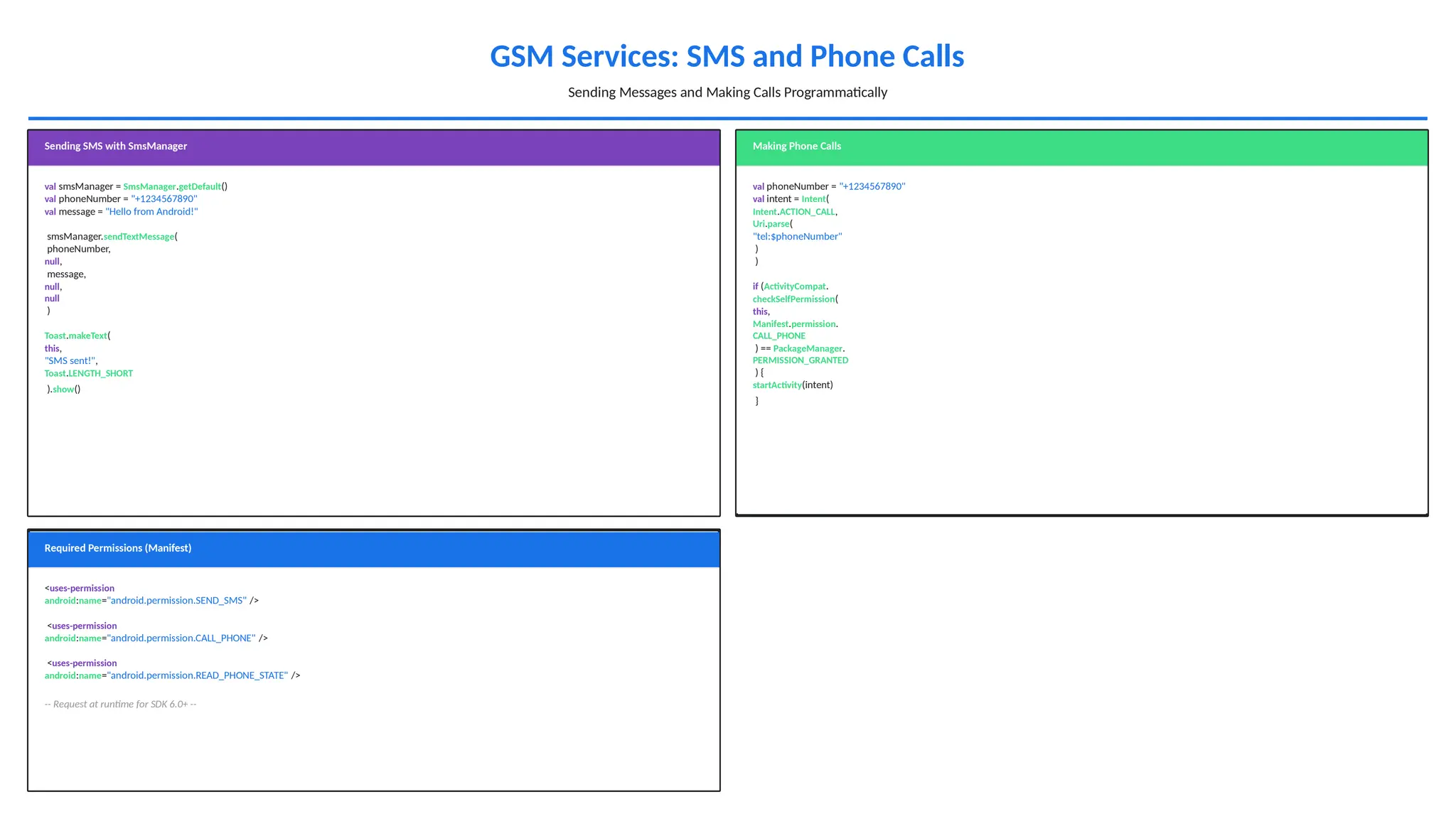
GSM Services: SMSand Phone Calls
Sending Messages and Making Calls Programmatically
Sending SMS with SmsManager
val smsManager = SmsManager.getDefault()
val phoneNumber = "+1234567890"
val message = "Hello from Android!"
smsManager.sendTextMessage(
phoneNumber,
null,
message,
null,
null
)
Toast.makeText(
this,
"SMS sent!",
Toast.LENGTH_SHORT
).show()
Making Phone Calls
val phoneNumber = "+1234567890"
val intent = Intent(
Intent.ACTION_CALL,
Uri.parse(
"tel:$phoneNumber"
)
)
if (ActivityCompat.
checkSelfPermission(
this,
Manifest.permission.
CALL_PHONE
) == PackageManager.
PERMISSION_GRANTED
) {
startActivity(intent)
}
Required Permissions (Manifest)
<uses-permission
android:name="android.permission.SEND_SMS" />
<uses-permission
android:name="android.permission.CALL_PHONE" />
<uses-permission
android:name="android.permission.READ_PHONE_STATE" />
-- Request at runtime for SDK 6.0+ --
- 3.
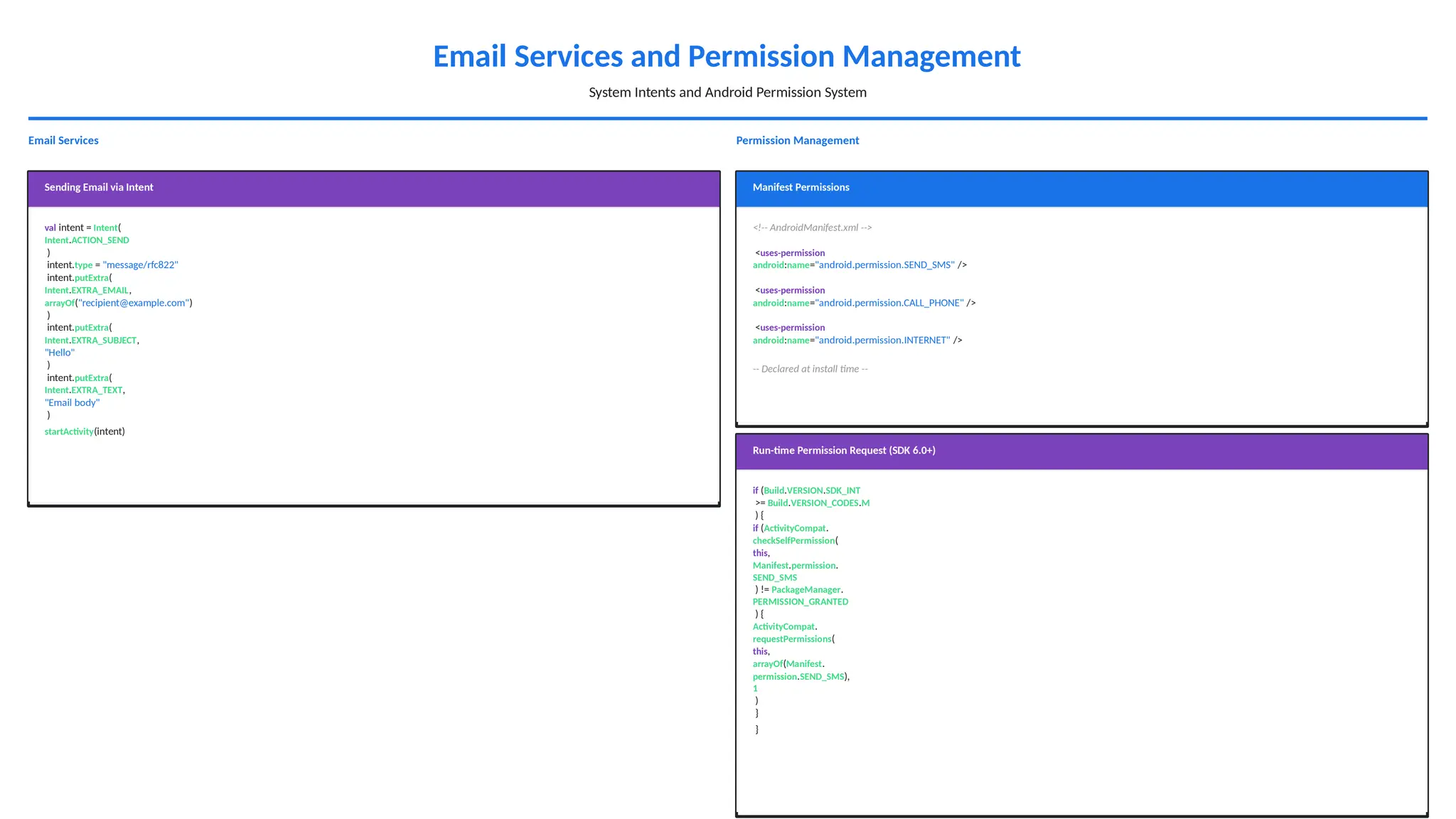
Email Services andPermission Management
System Intents and Android Permission System
Email Services
Sending Email via Intent
val intent = Intent(
Intent.ACTION_SEND
)
intent.type = "message/rfc822"
intent.putExtra(
Intent.EXTRA_EMAIL,
arrayOf("recipient@example.com")
)
intent.putExtra(
Intent.EXTRA_SUBJECT,
"Hello"
)
intent.putExtra(
Intent.EXTRA_TEXT,
"Email body"
)
startActivity(intent)
Permission Management
Manifest Permissions
<!-- AndroidManifest.xml -->
<uses-permission
android:name="android.permission.SEND_SMS" />
<uses-permission
android:name="android.permission.CALL_PHONE" />
<uses-permission
android:name="android.permission.INTERNET" />
-- Declared at install time --
Run-time Permission Request (SDK 6.0+)
if (Build.VERSION.SDK_INT
>= Build.VERSION_CODES.M
) {
if (ActivityCompat.
checkSelfPermission(
this,
Manifest.permission.
SEND_SMS
) != PackageManager.
PERMISSION_GRANTED
) {
ActivityCompat.
requestPermissions(
this,
arrayOf(Manifest.
permission.SEND_SMS),
1
)
}
}
- 4.
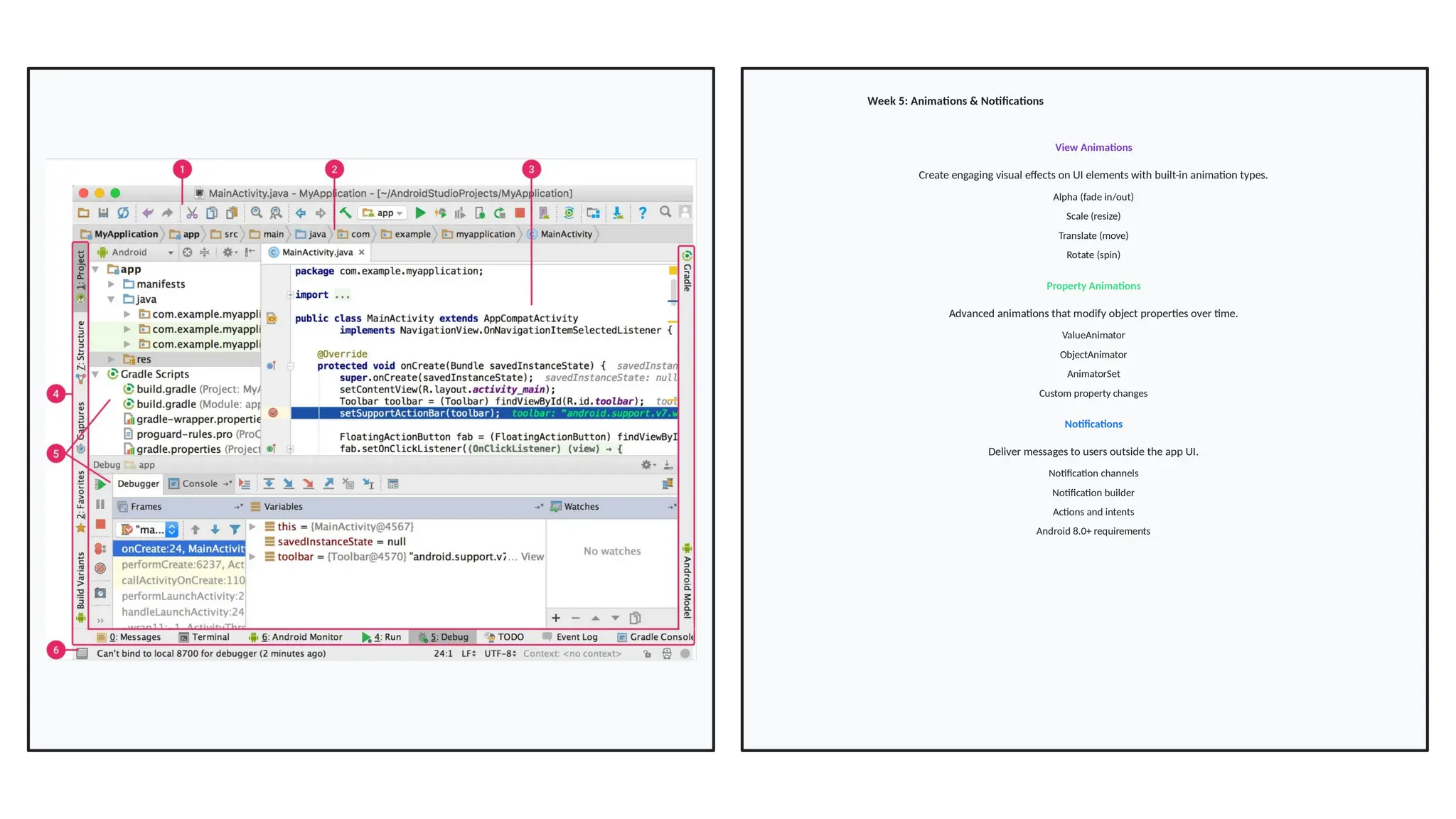
Week 5: Animations& Notifications
View Animations
Create engaging visual effects on UI elements with built-in animation types.
Alpha (fade in/out)
Scale (resize)
Translate (move)
Rotate (spin)
Property Animations
Advanced animations that modify object properties over time.
ValueAnimator
ObjectAnimator
AnimatorSet
Custom property changes
Notifications
Deliver messages to users outside the app UI.
Notification channels
Notification builder
Actions and intents
Android 8.0+ requirements
- 5.
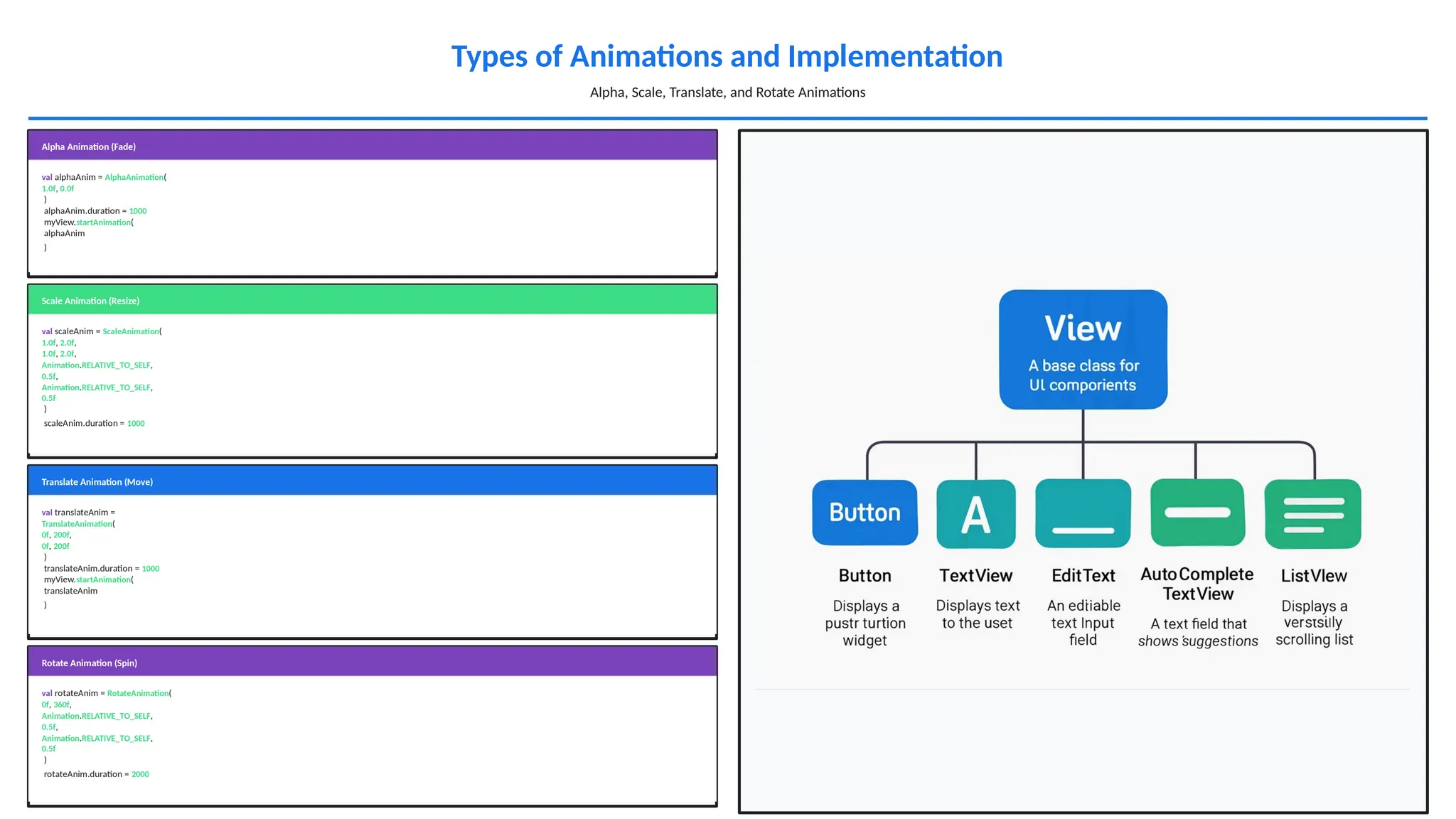
Types of Animationsand Implementation
Alpha, Scale, Translate, and Rotate Animations
Alpha Animation (Fade)
val alphaAnim = AlphaAnimation(
1.0f, 0.0f
)
alphaAnim.duration = 1000
myView.startAnimation(
alphaAnim
)
Scale Animation (Resize)
val scaleAnim = ScaleAnimation(
1.0f, 2.0f,
1.0f, 2.0f,
Animation.RELATIVE_TO_SELF,
0.5f,
Animation.RELATIVE_TO_SELF,
0.5f
)
scaleAnim.duration = 1000
Translate Animation (Move)
val translateAnim =
TranslateAnimation(
0f, 200f,
0f, 200f
)
translateAnim.duration = 1000
myView.startAnimation(
translateAnim
)
Rotate Animation (Spin)
val rotateAnim = RotateAnimation(
0f, 360f,
Animation.RELATIVE_TO_SELF,
0.5f,
Animation.RELATIVE_TO_SELF,
0.5f
)
rotateAnim.duration = 2000
- 6.
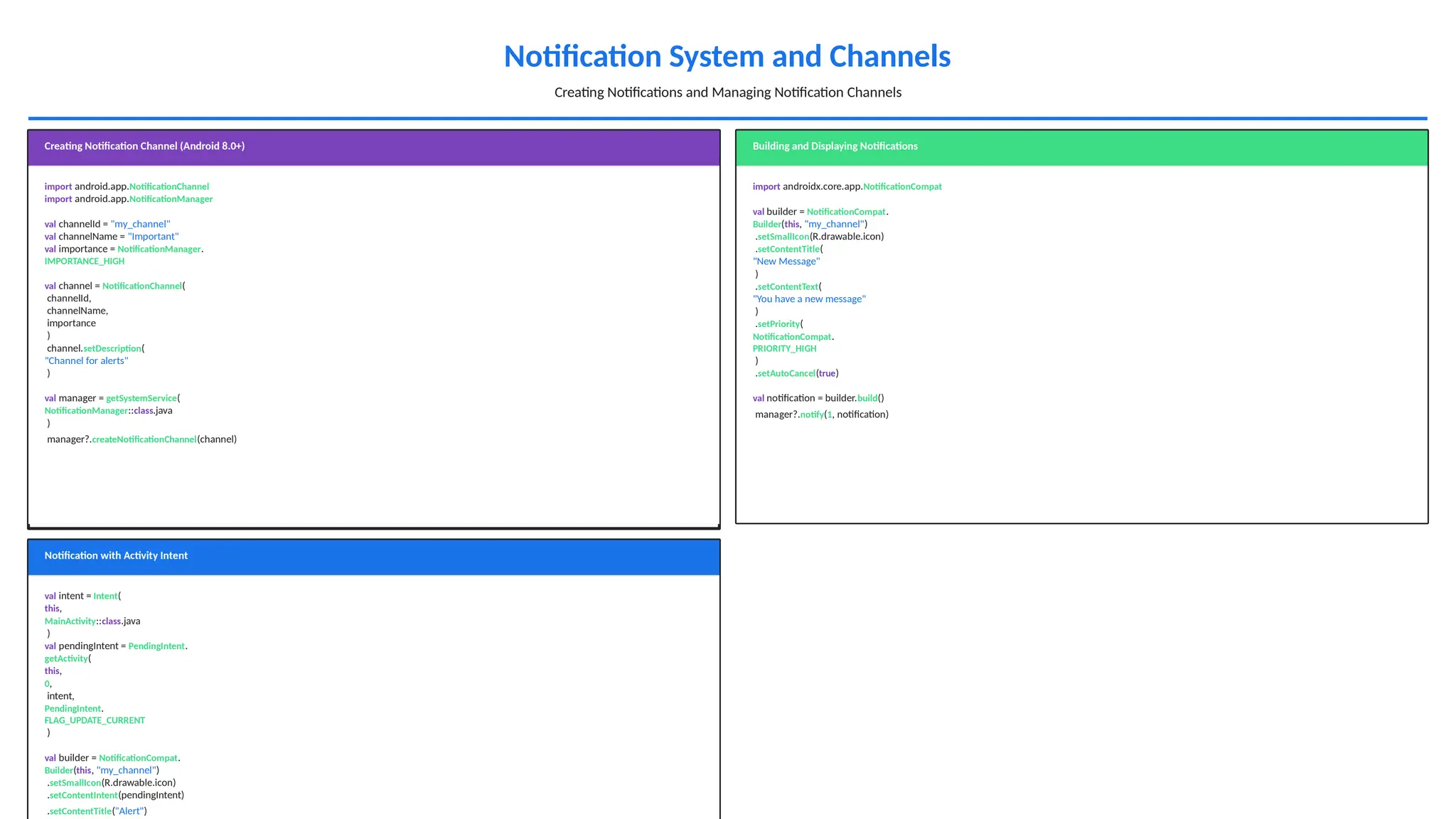
Notification System andChannels
Creating Notifications and Managing Notification Channels
Creating Notification Channel (Android 8.0+)
import android.app.NotificationChannel
import android.app.NotificationManager
val channelId = "my_channel"
val channelName = "Important"
val importance = NotificationManager.
IMPORTANCE_HIGH
val channel = NotificationChannel(
channelId,
channelName,
importance
)
channel.setDescription(
"Channel for alerts"
)
val manager = getSystemService(
NotificationManager::class.java
)
manager?.createNotificationChannel(channel)
Building and Displaying Notifications
import androidx.core.app.NotificationCompat
val builder = NotificationCompat.
Builder(this, "my_channel")
.setSmallIcon(R.drawable.icon)
.setContentTitle(
"New Message"
)
.setContentText(
"You have a new message"
)
.setPriority(
NotificationCompat.
PRIORITY_HIGH
)
.setAutoCancel(true)
val notification = builder.build()
manager?.notify(1, notification)
Notification with Activity Intent
val intent = Intent(
this,
MainActivity::class.java
)
val pendingIntent = PendingIntent.
getActivity(
this,
0,
intent,
PendingIntent.
FLAG_UPDATE_CURRENT
)
val builder = NotificationCompat.
Builder(this, "my_channel")
.setSmallIcon(R.drawable.icon)
.setContentIntent(pendingIntent)
.setContentTitle("Alert")
- 7.
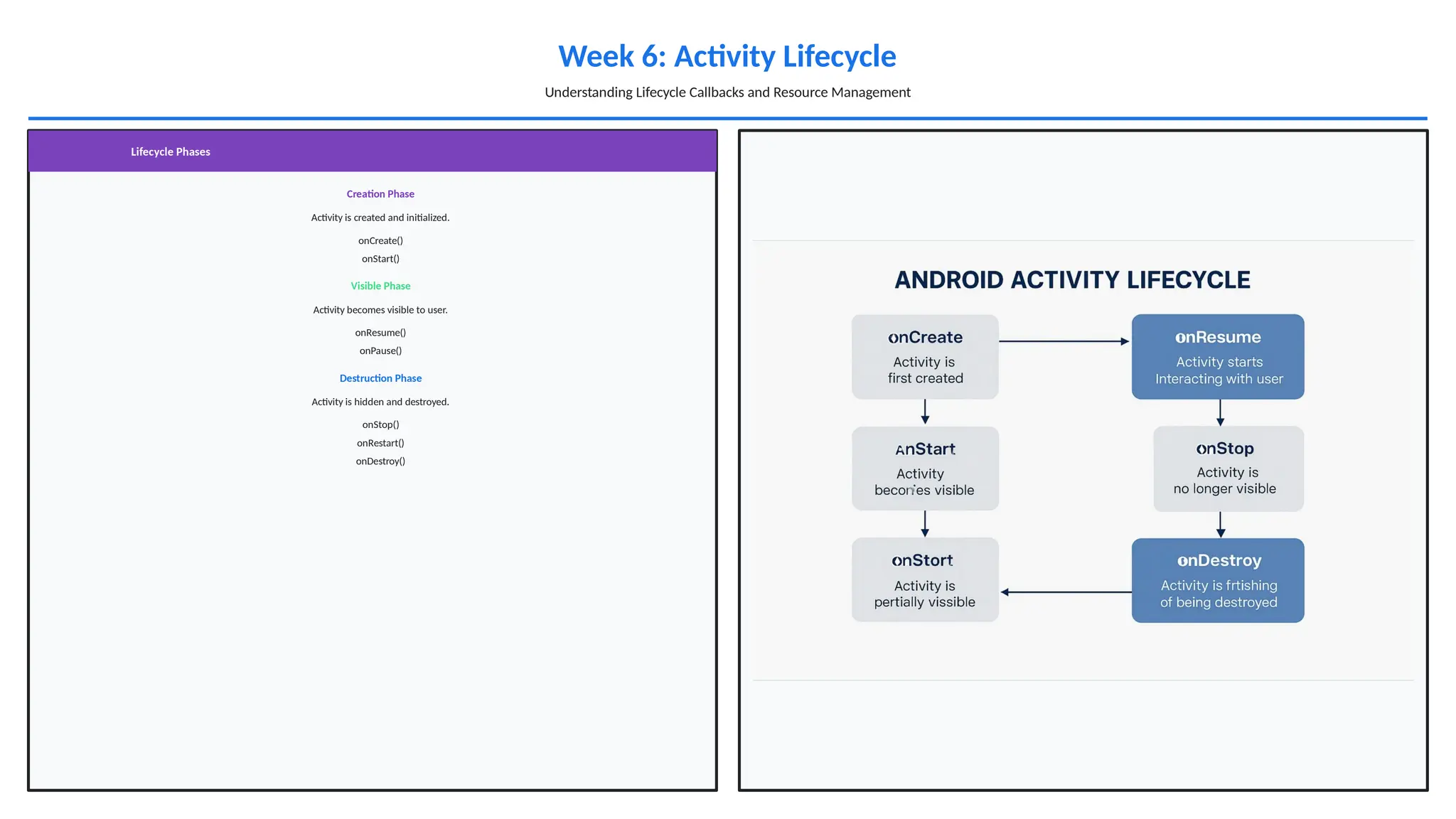
Week 6: ActivityLifecycle
Understanding Lifecycle Callbacks and Resource Management
Lifecycle Phases
Creation Phase
Activity is created and initialized.
onCreate()
onStart()
Visible Phase
Activity becomes visible to user.
onResume()
onPause()
Destruction Phase
Activity is hidden and destroyed.
onStop()
onRestart()
onDestroy()
- 8.
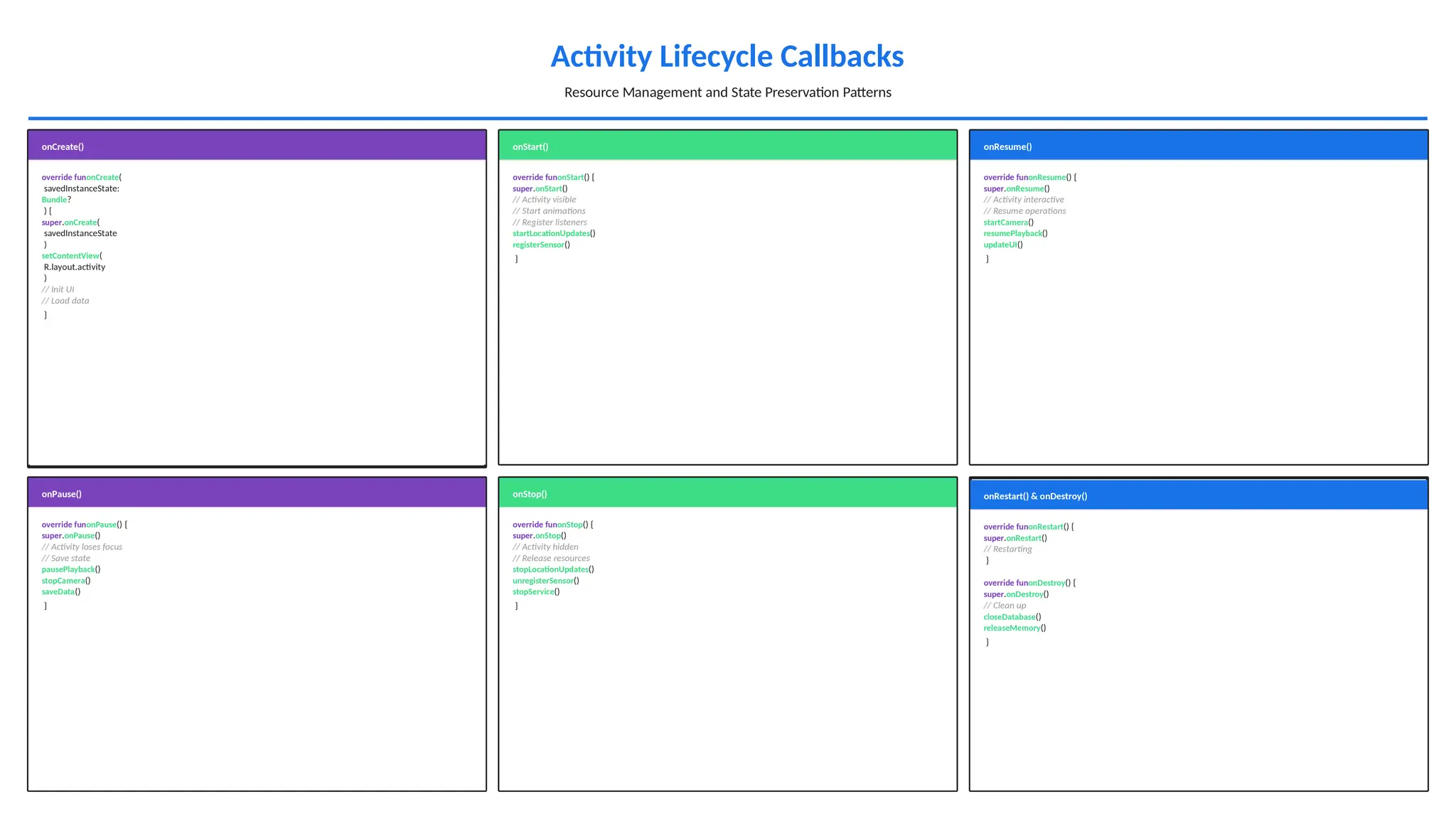
Activity Lifecycle Callbacks
ResourceManagement and State Preservation Patterns
onCreate()
override funonCreate(
savedInstanceState:
Bundle?
) {
super.onCreate(
savedInstanceState
)
setContentView(
R.layout.activity
)
// Init UI
// Load data
}
onStart()
override funonStart() {
super.onStart()
// Activity visible
// Start animations
// Register listeners
startLocationUpdates()
registerSensor()
}
onResume()
override funonResume() {
super.onResume()
// Activity interactive
// Resume operations
startCamera()
resumePlayback()
updateUI()
}
onPause()
override funonPause() {
super.onPause()
// Activity loses focus
// Save state
pausePlayback()
stopCamera()
saveData()
}
onStop()
override funonStop() {
super.onStop()
// Activity hidden
// Release resources
stopLocationUpdates()
unregisterSensor()
stopService()
}
onRestart() & onDestroy()
override funonRestart() {
super.onRestart()
// Restarting
}
override funonDestroy() {
super.onDestroy()
// Clean up
closeDatabase()
releaseMemory()
}
- 9.
Splash Screens andListView Implementation
Delayed Transitions and Dynamic List Display
Splash Screens
Using Handler for Delayed Transition
import android.os.Handler
import android.os.Looper
override funonCreate(
savedInstanceState: Bundle?
) {
super.onCreate(
savedInstanceState
)
setContentView(
R.layout.splash
)
Handler(Looper.
getMainLooper()
).postDelayed({
val intent = Intent(
this,
MainActivity::class.java
)
startActivity(intent)
finish()
}, 3000)
Using Coroutines for Delayed Transition
import kotlinx.coroutines.
GlobalScope
import kotlinx.coroutines.
delay
import kotlinx.coroutines.
launch
override funonCreate(
savedInstanceState: Bundle?
) {
super.onCreate(
savedInstanceState
)
setContentView(
R.layout.splash
)
GlobalScope.launch {
delay(3000)
val intent = Intent(
this@SplashActivity,
ListView Implementation
Custom ArrayAdapter for ListView
classItemAdapter(
context: Context,
val items: List<String>
) : ArrayAdapter<String>(
context,
android.R.layout.
simple_list_item_1,
items
) {
override fungetView(
position: Int,
convertView: View?,
parent: ViewGroup
): View {
val view = super.
getView(
position,
convertView,
parent
)
val textView = view as
TextView
textView.text = items[position]
return view
}
}
Using ListView in Activity
val listView = findViewById<
ListView
>(R.id.listView)
val items = listOf(
"Item 1",
"Item 2",
"Item 3"
)
val adapter = ItemAdapter(
this,
items
)
listView.adapter = adapter
listView.setOnItemClickListener {
- 10.
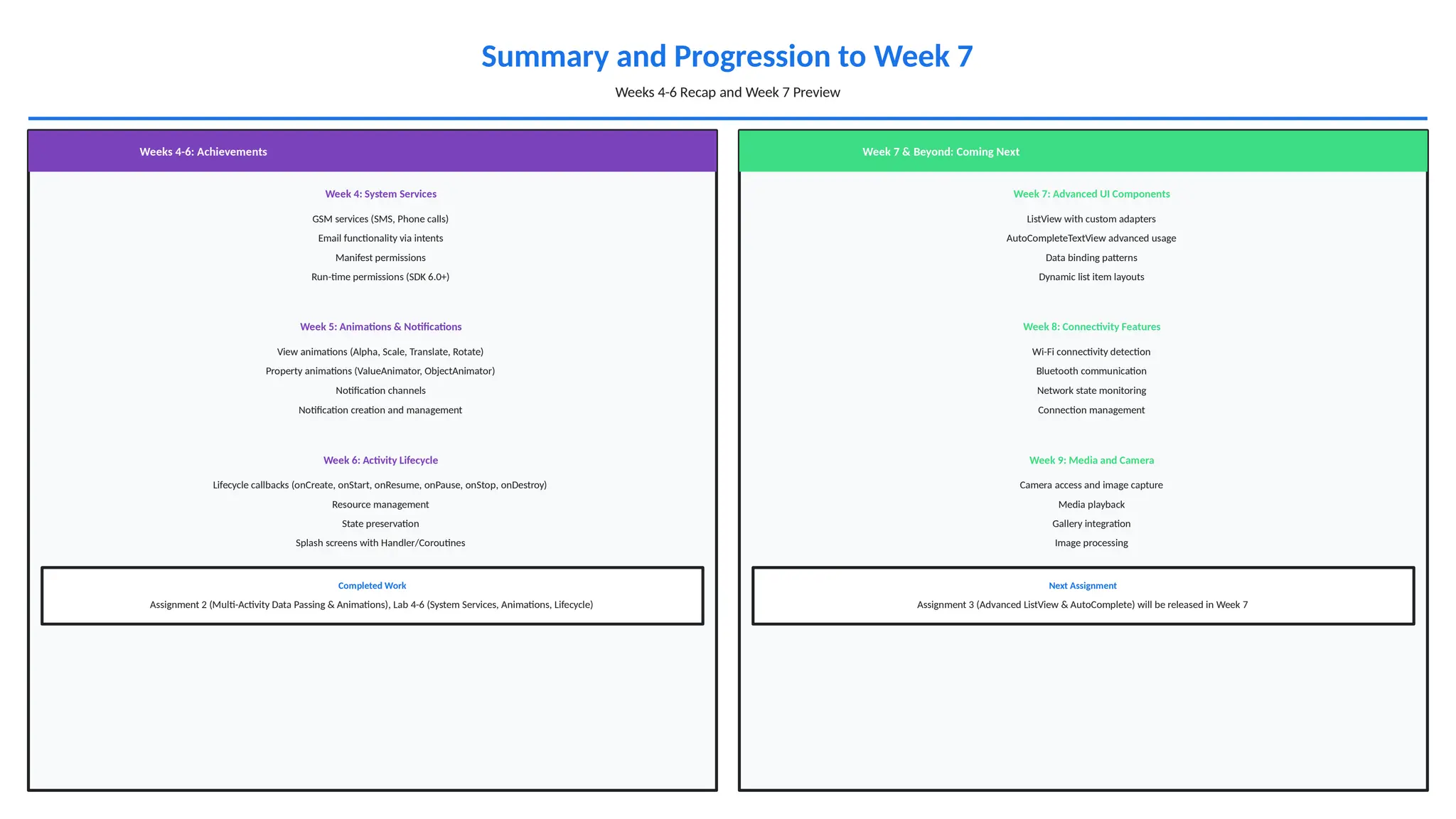
Summary and Progressionto Week 7
Weeks 4-6 Recap and Week 7 Preview
Weeks 4-6: Achievements
Week 4: System Services
GSM services (SMS, Phone calls)
Email functionality via intents
Manifest permissions
Run-time permissions (SDK 6.0+)
Week 5: Animations & Notifications
View animations (Alpha, Scale, Translate, Rotate)
Property animations (ValueAnimator, ObjectAnimator)
Notification channels
Notification creation and management
Week 6: Activity Lifecycle
Lifecycle callbacks (onCreate, onStart, onResume, onPause, onStop, onDestroy)
Resource management
State preservation
Splash screens with Handler/Coroutines
Completed Work
Assignment 2 (Multi-Activity Data Passing & Animations), Lab 4-6 (System Services, Animations, Lifecycle)
Week 7 & Beyond: Coming Next
Week 7: Advanced UI Components
ListView with custom adapters
AutoCompleteTextView advanced usage
Data binding patterns
Dynamic list item layouts
Week 8: Connectivity Features
Wi-Fi connectivity detection
Bluetooth communication
Network state monitoring
Connection management
Week 9: Media and Camera
Camera access and image capture
Media playback
Gallery integration
Image processing
Next Assignment
Assignment 3 (Advanced ListView & AutoComplete) will be released in Week 7
![Splash Screens and ListView Implementation
Delayed Transitions and Dynamic List Display
Splash Screens
Using Handler for Delayed Transition
import android.os.Handler
import android.os.Looper
override funonCreate(
savedInstanceState: Bundle?
) {
super.onCreate(
savedInstanceState
)
setContentView(
R.layout.splash
)
Handler(Looper.
getMainLooper()
).postDelayed({
val intent = Intent(
this,
MainActivity::class.java
)
startActivity(intent)
finish()
}, 3000)
Using Coroutines for Delayed Transition
import kotlinx.coroutines.
GlobalScope
import kotlinx.coroutines.
delay
import kotlinx.coroutines.
launch
override funonCreate(
savedInstanceState: Bundle?
) {
super.onCreate(
savedInstanceState
)
setContentView(
R.layout.splash
)
GlobalScope.launch {
delay(3000)
val intent = Intent(
this@SplashActivity,
ListView Implementation
Custom ArrayAdapter for ListView
classItemAdapter(
context: Context,
val items: List<String>
) : ArrayAdapter<String>(
context,
android.R.layout.
simple_list_item_1,
items
) {
override fungetView(
position: Int,
convertView: View?,
parent: ViewGroup
): View {
val view = super.
getView(
position,
convertView,
parent
)
val textView = view as
TextView
textView.text = items[position]
return view
}
}
Using ListView in Activity
val listView = findViewById<
ListView
>(R.id.listView)
val items = listOf(
"Item 1",
"Item 2",
"Item 3"
)
val adapter = ItemAdapter(
this,
items
)
listView.adapter = adapter
listView.setOnItemClickListener {](https://image.slidesharecdn.com/mobileapplicationdevelopmentweeks4-6-251126134909-9528b56b/75/Mobile_Application_Development_Weeks_4-6-pptx-9-2048.jpg)